What the Factura Digital contract manager is
The contract manager is a Factura Digital module to create, send, negotiate, sign and renew contracts with your customers and suppliers. It lives in the same account you invoice from, so each contract sits next to that counterparty's CFDIs.
It brings together three things that usually live apart: negotiating the text, which bounces around by email as Word files; the signature, often a scanned PDF; and the evidence that the transaction existed, assembled by hand when a request arrives.
It is built for small and mid-sized companies, accounting firms and back offices that sign services agreements, leases, purchase and sale agreements, NDAs and supplier contracts.
- Contracts from five base templates or from your own PDF.
- Comments, proposed changes and versions on the same document.
- Simple e-signature or SAT e.firma, validated with the SAT.
- Certificate page with SHA-256 hash, each signer's trail and a QR.
- A file with linked CFDIs, exportable as a ZIP.
- Renewal reminders based on the notice deadline.
What is the substance (materialidad) of transactions for the SAT?
Materialidad is the evidence that a transaction backed by a CFDI really happened: the service was rendered, the goods were delivered and it was paid. The SAT reviews it mainly under two articles of the Federal Tax Code.
Article 69-B lets the SAT presume that transactions are nonexistent when the issuer lacks the assets, staff, infrastructure or material capacity to carry them out. Whoever received those invoices must prove the transaction existed or correct their position. Article 5-A requires legal acts to have a business reason.
In practice, a CFDI alone does not prove the transaction existed. It goes together with evidence: the contract, deliverables, communications and payments. The contract gives context to everything else: who the parties are, what was agreed, for how much and for how long.
Is an electronically signed contract valid in Mexico?
Yes. The Commerce Code recognizes data messages and electronic signatures in commercial acts (articles 89 to 114). The Federal Civil Code accepts electronic means when the law requires written form, as long as the information can be attributed to the obligated parties and consulted later (article 1834 bis).
The e.firma is the advanced electronic signature issued by the SAT. It offers a higher level of identification, because the certificate is tied to the signer's RFC and the SAT issues it after validating their identity.
Some acts require special formalities, such as a notarial deed. For those, ask your lawyer. For most services agreements, commercial leases, business-to-business sales and NDAs, an electronic signature is a practical route with legal backing.
| Simple e-signature | SAT e.firma | |
|---|---|---|
| How it is signed | Drawn or typed on screen | With the e.firma .cer and .key and its password |
| How identity is confirmed | 6-digit code sent to the signer's email | SAT certificate tied to the signer's RFC |
| What the system checks | That the code is valid and belongs to that person | SAT chain, validity, that it is an e.firma and not a CSD, revocation and expected RFC |
| What is recorded | Date and time, IP, browser and the version hash | The same, plus RFC, serial number and the signature .p7s file |
| When to use it | Everyday contracts and counterparties without their e.firma at hand | Higher-value contracts or when you want to identify the signer by RFC |
Step 1. Create the contract or upload your PDF
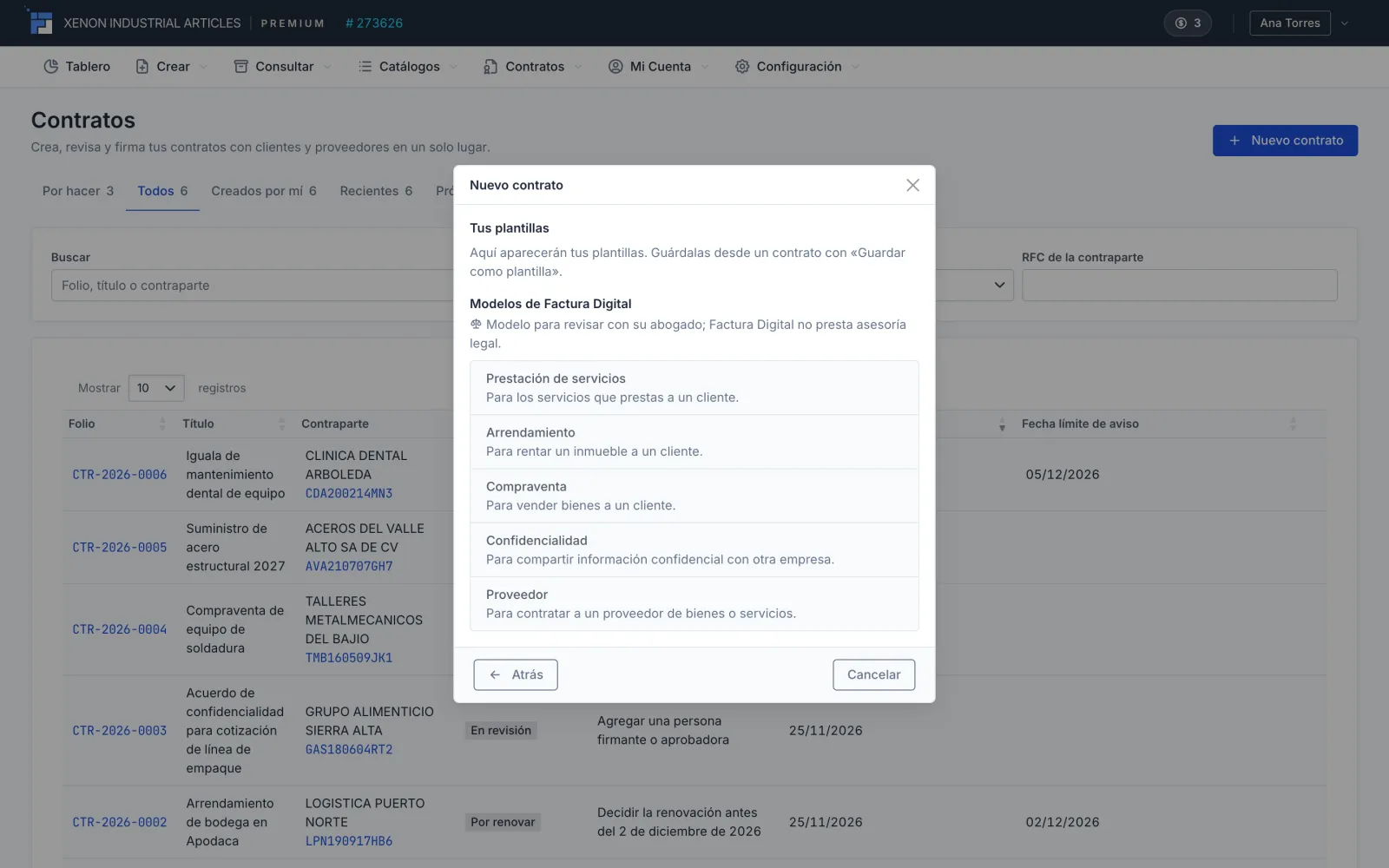
From the Contracts inbox you choose "Nuevo contrato" (New contract) and decide how to start: from a Factura Digital template, from one of your own, blank, or by uploading a PDF of up to 20 MB and 300 pages.
The base templates cover five cases: services, lease, purchase and sale, confidentiality and supplier. Each carries the note "Modelo para revisar con su abogado" (Template to review with your lawyer); the system reminds you to remove it before sending.
The counterparty is picked from your customer or supplier catalog. Their details (legal name, RFC, address) fill the contract fields, and if they are not in your catalog yet, they are added when you create the contract.
Step 2. Fill in the summary sheet and send
The contract's summary sheet holds the essentials: parties, purpose, amount, currency, frequency, start and end dates, automatic renewal, notice days, penalties and jurisdiction. When you confirm it, its data fills the text fields and the system calculates the deadline to give notice of non-renewal.
You can fill it in by hand or ask the AI Assistant to fill it from the text; you confirm or correct it. The same feature reviews the contract's risks by type and flags each clause green, yellow or red with suggested wording.
Then you add the people: each with a role (signer, approver, reader or copy) and a side (our side or counterparty). When you send, each person gets their own link by email, valid for 30 days.
Step 3. Negotiate on the same document
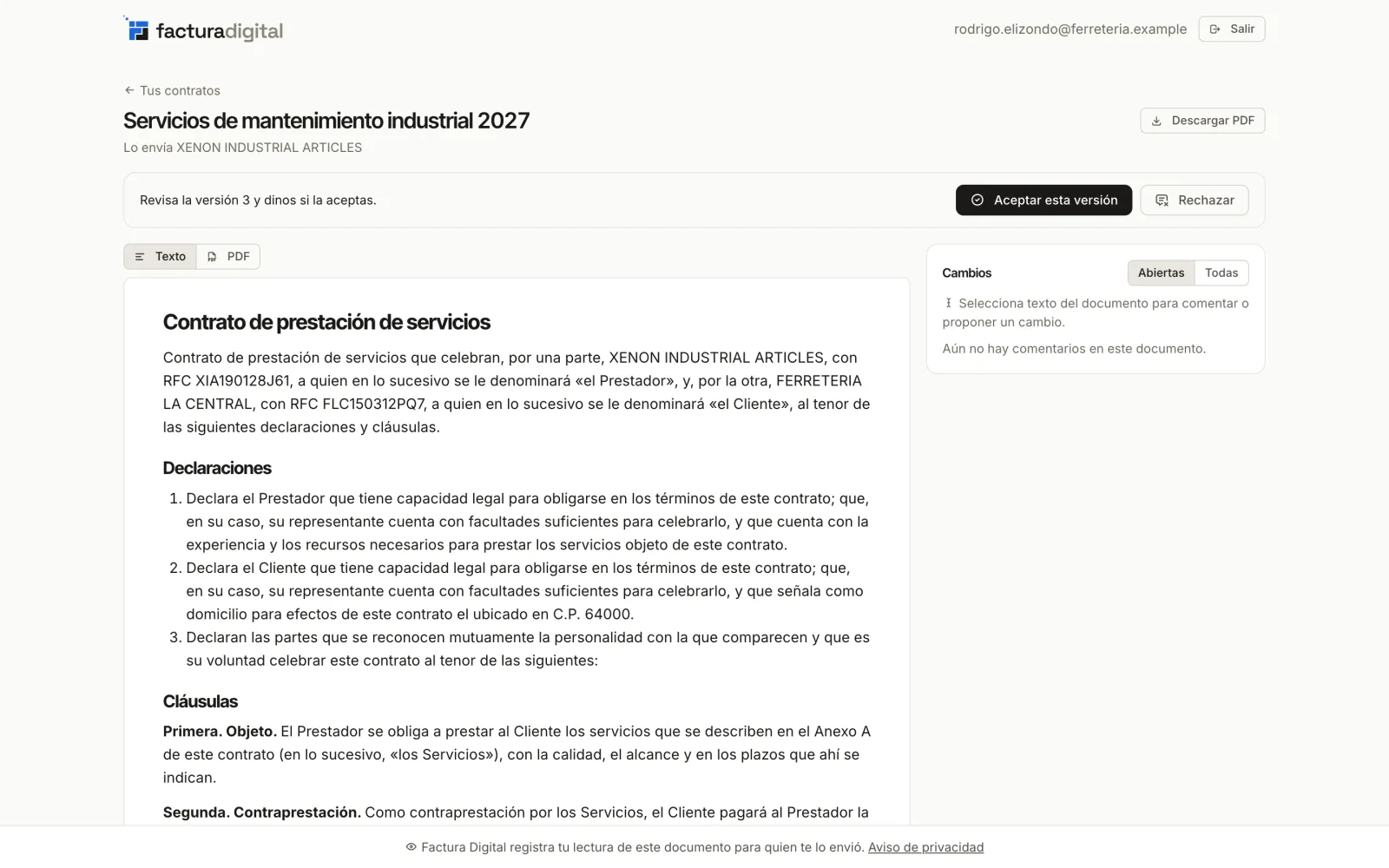
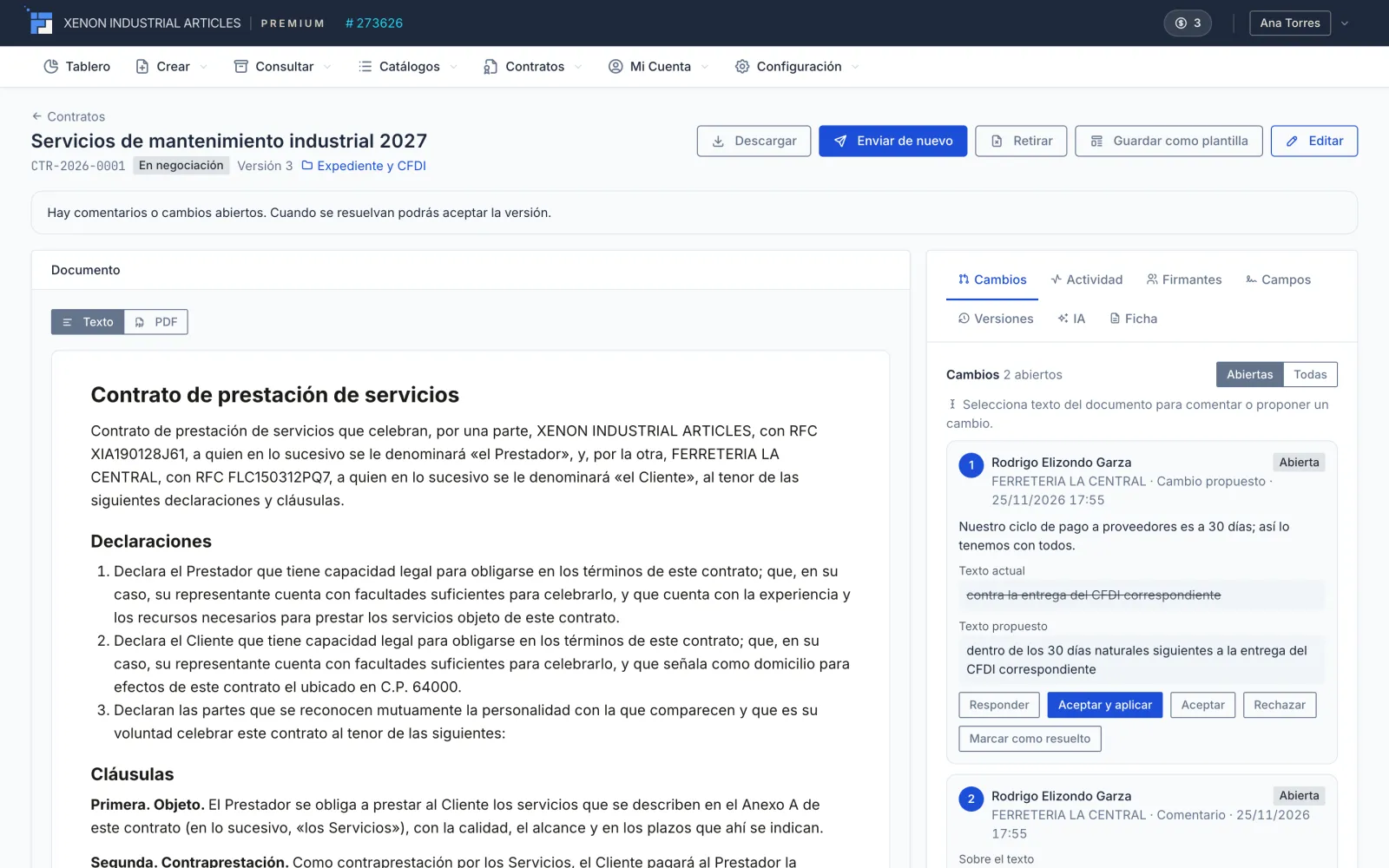
The counterparty signs in with their email and a 6-digit code. They can read, comment and propose changes by selecting text, without editing it directly. You see each proposal in the Changes tab with the current and proposed text, and decide: accept and apply, accept, reject or mark as resolved.
Accepting a change creates a new version. Each version is immutable, has its SHA-256 hash and can be compared with any other: removals in red and additions in green. If the text changes after an acceptance or a signature, those acceptances are invalidated and the contract goes back to review.
Step 4. Prepare and send for signature
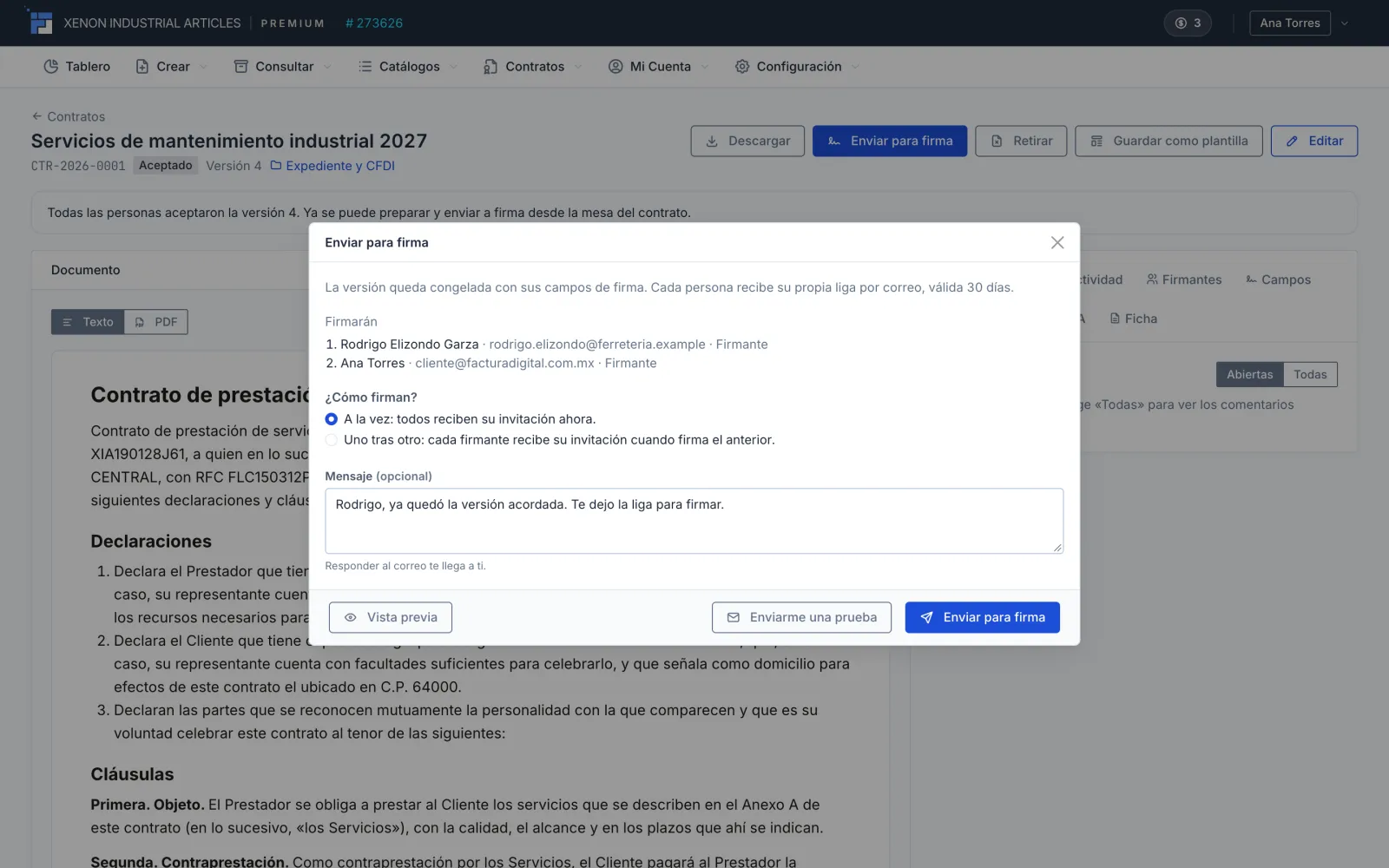
When everyone accepts the same version, the contract is prepared for signature. The version is frozen and you place each signer's fields on the document: signature, initials, name, signing date, title, free text or checkbox. With "Proponer bloques" (Propose blocks), the system places them at the end.
You choose whether they sign at the same time or in order. In order, each signer receives their invitation when the previous one signs. People with a pending signature get reminders after 3, 7 and 14 days, during business hours.
Step 5. Sign with a simple e-signature or e.firma
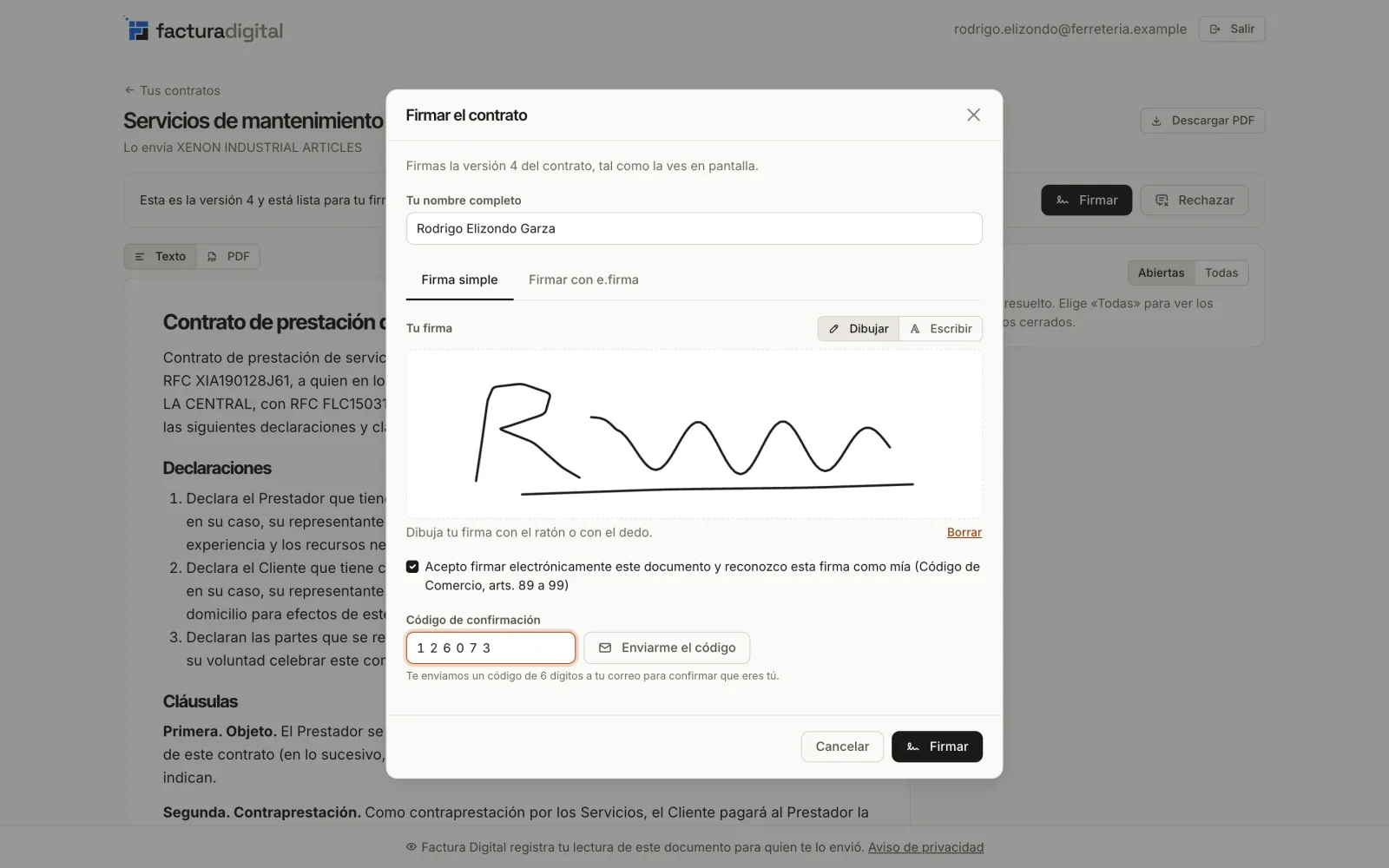
The signer opens the contract, reviews the frozen version and chooses how to sign. With a simple e-signature, they draw or type their signature, accept the statement "I agree to sign this document electronically and recognize this signature as mine (Commerce Code, arts. 89 to 99)" and confirm with a code sent to their email.
With e.firma, they choose their certificate (.cer) and private key (.key) and type their password. The signature is generated in their browser: the key and password are never sent to the server. Factura Digital receives the signature and the public certificate and checks that the certificate comes from the SAT, is valid, is an e.firma and not a CSD, is not revoked and matches the expected RFC.
What the certificate page contains
When the last person signs, the system generates the final PDF: the contract with signatures stamped in their fields and, at the end, a certificate page. Everyone receives it by email, including people who only get a copy.
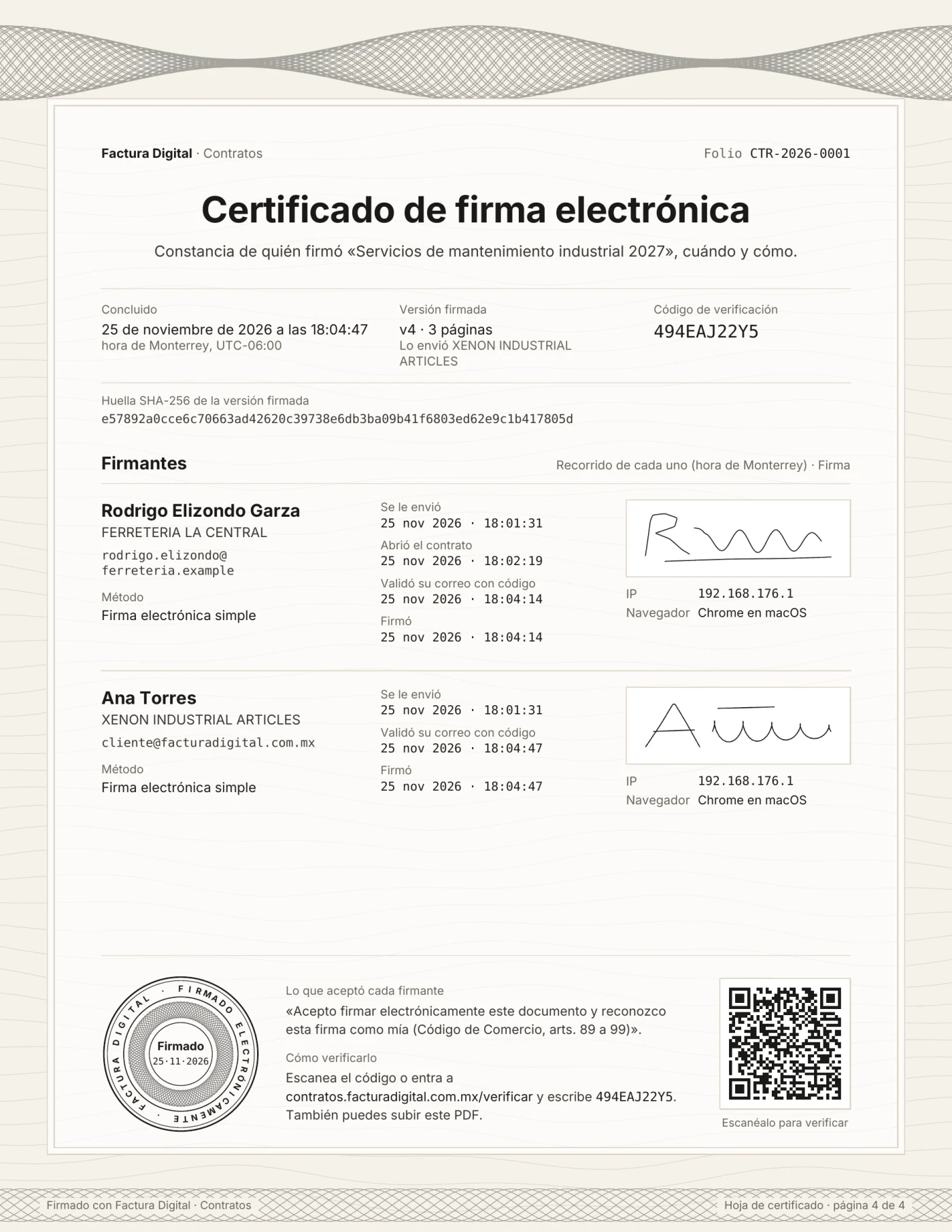
- Contract folio, title, who sent it, signed version and page count.
- Closing date and time, in Monterrey time.
- SHA-256 hash of the signed version: if anyone changes a comma, it no longer matches.
- A 10-character verification code, also in the footer of every page.
- Per signer: name, company, email, method, IP and browser, and their trail: when it was sent, when they opened it, when they validated their email and when they signed.
- Each person's drawn signature or, with e.firma, the RFC, serial number and SAT revocation check, with the .p7s file attached to the PDF.
- The text each signer accepted, a "Signed" seal and a QR to public verification.
How to verify a signed contract
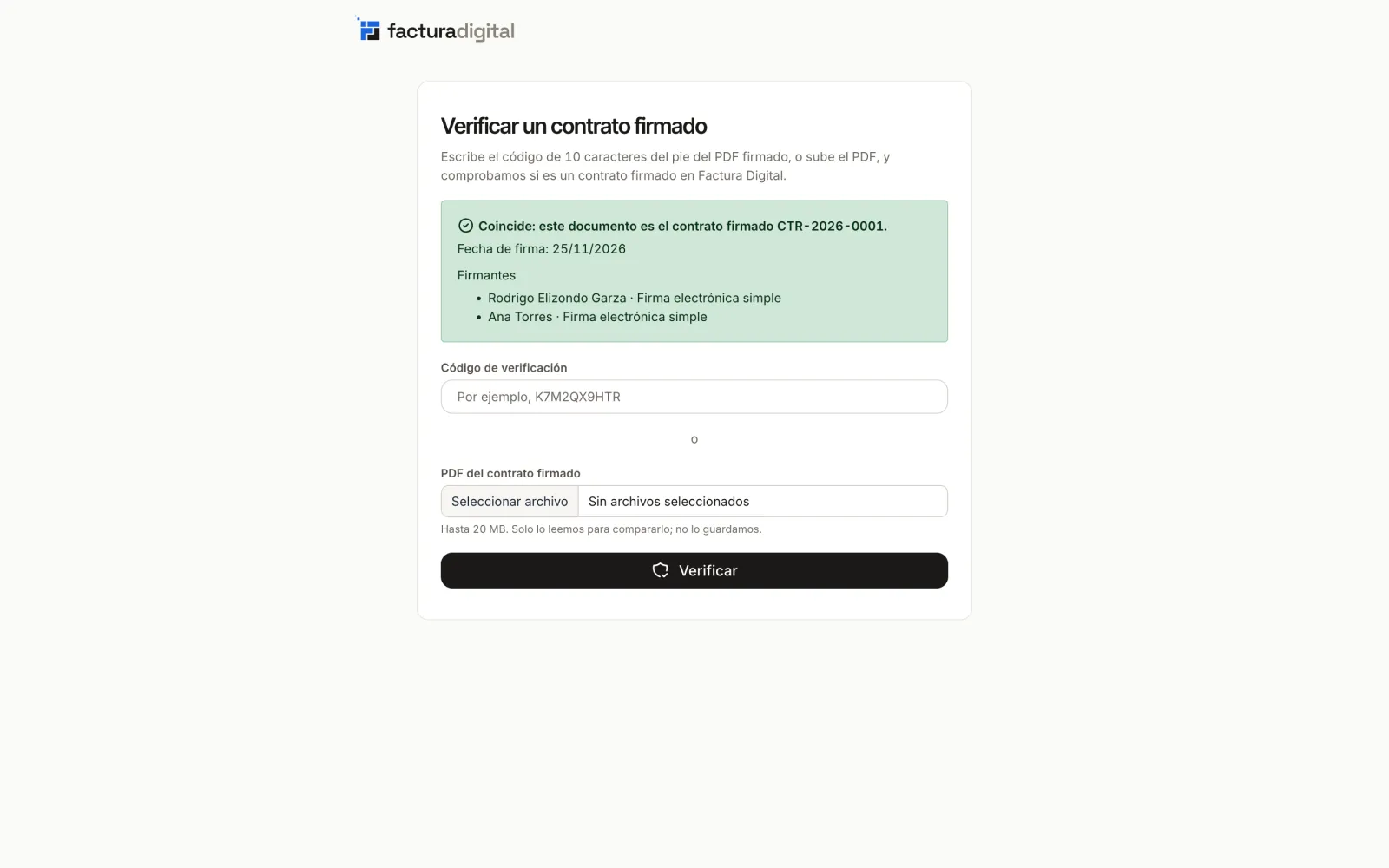
- Scan the QR on the certificate page or open the Factura Digital contract verification page.
- Enter the 10-character code shown in the footer of every page, or upload the contract PDF.
- The page tells you whether it matches a signed contract and shows its folio, the signing date and who signed with which method, without showing emails or IP addresses.
The file: contract, log and CFDIs in one place
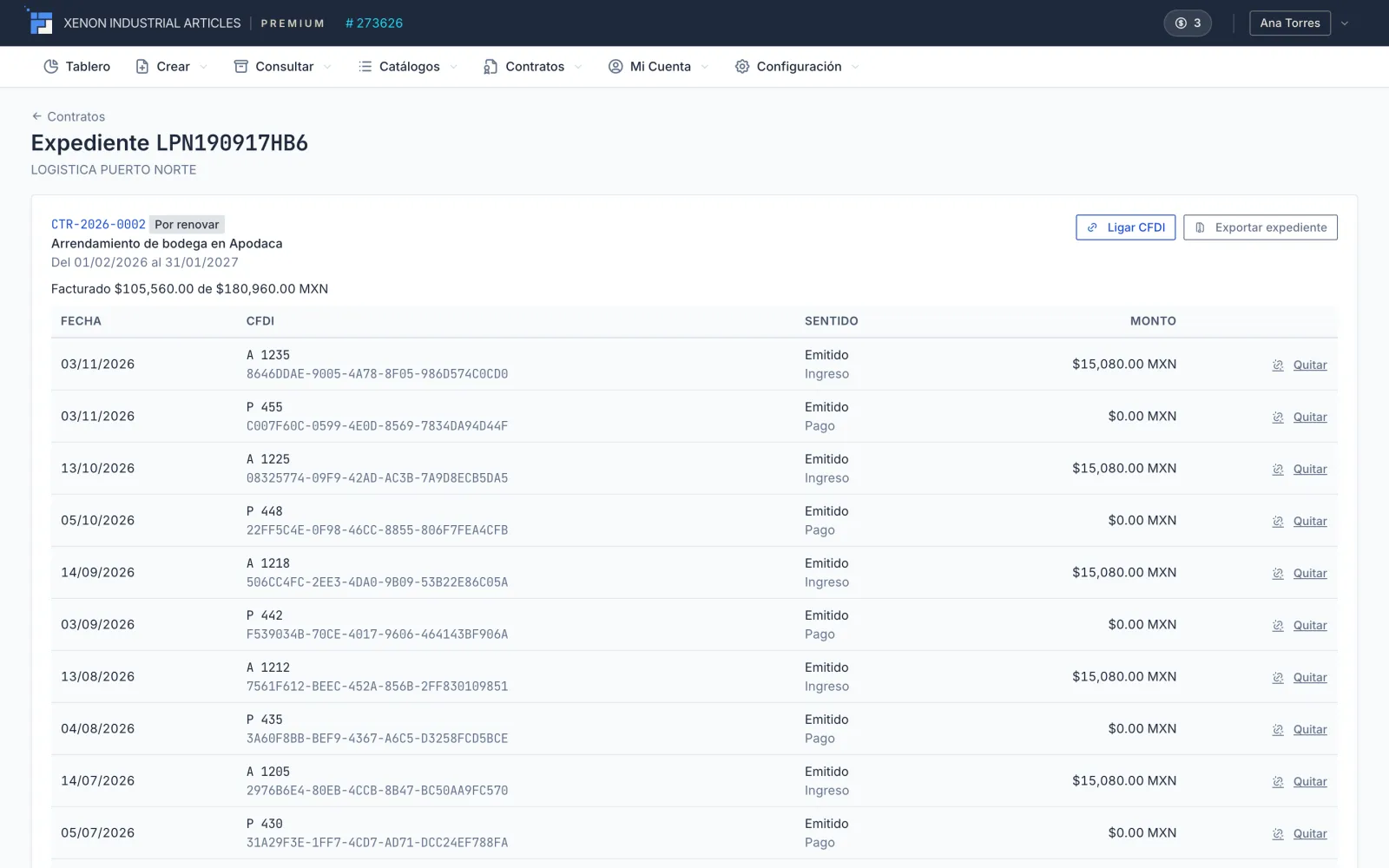
Each counterparty has a file by RFC. It holds their contracts and the CFDIs linked to each one, issued or received: invoices, credit notes and payment complements. The system suggests that counterparty's CFDIs within the contract period and you decide which ones to link. It shows invoiced versus agreed amount.
With "Exportar expediente" (Export case file), the system builds a ZIP and emails you the download link, valid for 7 days.
| ZIP file | What it contains |
|---|---|
| final.pdf | The signed contract, with signatures stamped in |
| certificado.pdf | The certificate page |
| bitacora.csv | Every contract event, with date, person, IP and browser |
| cfdi/ | The XML and PDF of each linked CFDI |
Renewals: reminders before the deadline
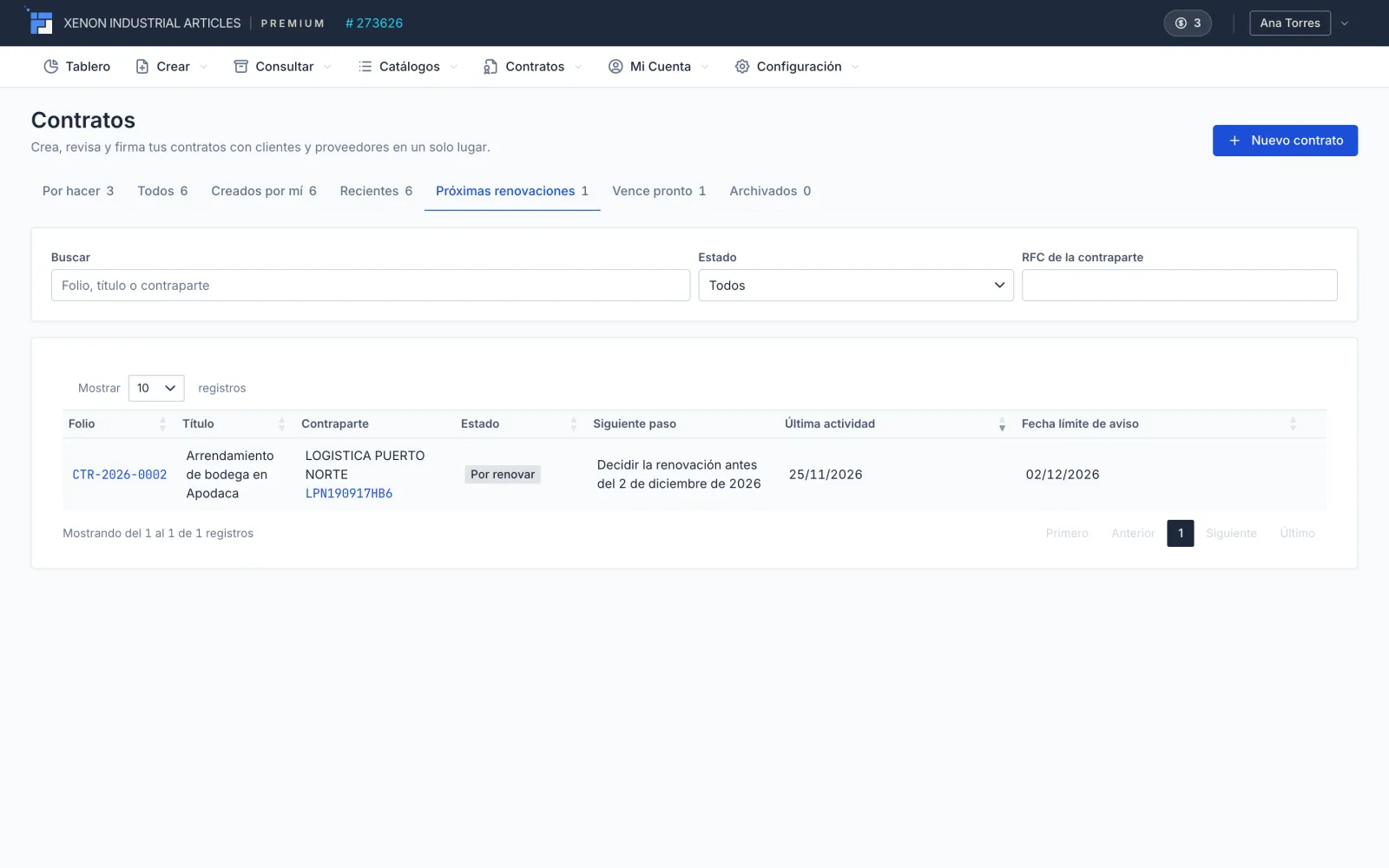
With the end date and the notice days on the summary sheet, the system calculates the notice deadline and writes to you 90, 60, 30 and 7 days before, and on the expiration day. The inbox has two views for this: Upcoming renewals and Ending soon.
From a contract up for renewal you choose: Renew (creates the next period's contract by copying text, people and summary, with an INPC adjustment if you enter one), Do not renew (sends a non-renewal notice that the counterparty acknowledges) or End.
Security and privacy
- Each person has their own link; the database stores only its hash, not the link.
- To enter, accept or sign, a 6-digit code is sent to the invited email, with limited attempts.
- A link forwarded to someone else does not work for them: the code always goes to the invited email.
- The e.firma private key and its password never leave the signer's browser.
- The log and the signatures are not edited: every event is recorded.
- Per-user permissions to view or manage contracts.
- The inbox tells the recipient that their reading is recorded for the person who sent it.
How much it costs
The contract manager is included in Premium, which costs $450 MXN per month or $4,500 MXN per year with VAT included, with unlimited contracts and sends. AI Assistant features, such as filling in the summary sheet or reviewing risks, use AI credits from your monthly allowance.
Whoever receives and signs pays nothing and needs no account. Accounts without Premium can receive and sign contracts. If you cancel Premium, your contracts stay available to view and download.
How to get started
- Create your account with 10 free stamps, no card, or sign in to yours.
- Activate Premium to create and send contracts.
- Go to Contracts, choose "Nuevo contrato" (New contract) and start from a template or your PDF.
- See every feature on the contract manager page.