Prerequisites to issue a CFDI 4.0
To issue a CFDI 4.0 in Mexico you need three technical and fiscal prerequisites before capturing the first line item. Without them, no system —web, desktop or API— will let you stamp.
The first is to have an active Digital Seal Certificate (CSD) issued by the SAT in your RFC's name. The CSD is composed of a .cer file, a .key file and the password used to generate it. It's what cryptographically signs the XML before sending it to the PAC.
- Issuer's RFC active in the SAT taxpayer registry, with an assigned tax regime.
- Active Digital Seal Certificate (CSD) loaded in your invoicing system.
- Recipient data exactly as it appears on their Tax Status Certificate (CIF).
- CFDI use compatible with the recipient's tax regime.
- System connected to an Authorized Certification Provider (PAC) for stamping.
Step 1 — Capture the recipient's data
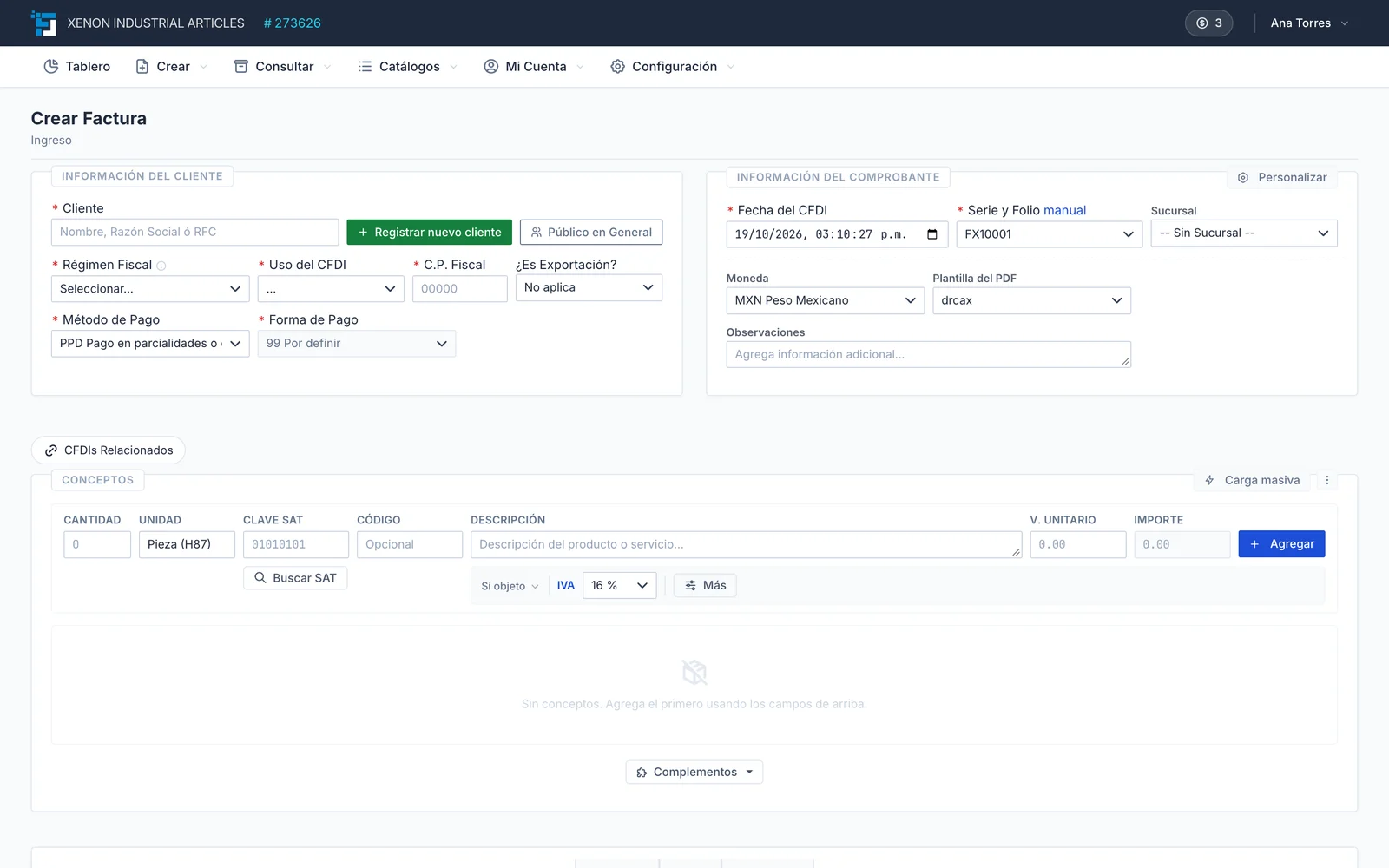
The first operational step is to identify the recipient. The SAT requires four fields that must match exactly the recipient's current Tax Status Certificate. If a single one doesn't match, the PAC rejects the stamping.
Enter the RFC, the legal name exactly as it appears on the certificate (with accents, no abbreviations, no trade name), the postal code of the tax address (not the branch) and the recipient's tax regime. In Factura Digital you can add the customer by uploading their certificate: the system queries the SAT and fills in those fields.
Step 2 — Define the CFDI use
The CFDI use is the code that indicates what the recipient will deduct or credit with that receipt. The SAT publishes the c_UsoCFDI catalog with values like 'G01 — Acquisition of merchandise', 'G03 — General expenses', 'P01 — To be defined' or 'CP01 — Payments'.
The CFDI use must be compatible with the recipient's tax regime. For example, a recipient under the 'Wages and Salaries' regime (605) cannot receive a CFDI with use 'G03'. If you make a mistake, the PAC returns error CFDI40177.
Step 3 — Add the line items
Each line item is a CFDI line: a product, service or charge. For each line, the SAT requires five minimum fields:
- Product/service code from the c_ClaveProdServ catalog (eight digits).
- Unit code from the c_ClaveUnidad catalog (e.g., H87 for piece or E48 for service).
- Quantity and free description.
- Unit value (excluding taxes) and discount if applicable.
- Tax object (ObjetoImp): 01 not subject, 02 subject, 03 subject but not required to itemize.
Step 4 — Register taxes per line
If the line is subject to tax (ObjetoImp 02), you must itemize transfer taxes and, if applicable, withholding taxes. The most common in Mexico is VAT at 16%, but there are variations:
VAT at 16% on national transactions. VAT at 8% in the northern or southern border zone. VAT at 0% on basic foods, books, medicine and exports. VAT exempt (no rate) on medical, educational and financial services. IEPS on alcoholic beverages, tobacco, fuels and sweetened drinks with specific rates. If your business is professional services to legal entities, additional 10.67% VAT withholding and 10% ISR withholding also apply.
Step 5 — Validate before stamping
Before sending the CFDI to the PAC, validate that the XML structure complies with SAT Annex 20. The most common errors that will stop stamping are: amounts with more than two decimals, tax totals that don't add up, an issuer postal code that doesn't match the place of issue, or payment method and form inconsistent with the document type.
If your system doesn't check beforehand, you'll depend on stamping rejecting it. In Factura Digital, when the SAT rejects something, the error is explained in plain Spanish and tells you what to fix.
Step 6 — Stamp with your PAC
Stamping is the last step: your system signs the XML with the CSD and sends it to the Authorized Certification Provider (PAC), which validates the data against the SAT services, assigns a UUID (Tax Folio) and returns the stamped XML plus a printable PDF representation.
Once stamped, the CFDI is a valid tax document. You're required to deliver it to the recipient (XML and PDF) and keep it for five years. Any later correction implies cancellation and reissuance, not editing.
In Factura Digital stamping is ultra-fast and backed up: if a PAC doesn't respond, your CFDI still gets stamped. Each stamped CFDI uses one stamp, and stamps never expire.
